

Microsoft Word is one of the most widely used tools on computers because it's not only useful for writing documents, but also for creating many other things, such as PDFs. However, another useful tool is the ability to easily create organizational charts.
These charts allow you to represent a company structure, a hierarchy within a project, or any other need that establishes a power or subordination relationship between various levels. But how do you do it? We'll explain it step by step so you won't have any problems (although keep in mind that each version of Word may have slight differences).
What is an organizational chart and what is it for?

Before giving you instructions on how to create an organizational chart in Word, it's necessary to understand what an organizational chart is. It's a visual representation of the organizational or hierarchical structure of a group, company, project, etc.
For example, imagine a class. It's made up of children, but there's one who holds the position of class representative, and a second who holds the position of deputy representative.
An organizational chart would show the delegate at the first level. The subdelegate at the second level, and all other students would be at the third and final level.
An organizational chart has a variety of uses, although the main one is usually related to representing a company's hierarchy. However, this same hierarchy can also be reflected in a work team, a project, etc.
How to create organizational charts in Word step by step

If you have Microsoft Word, you probably already know how to use it. However, you may have never considered its ability to create organizational charts. If so, once you have the program open with a new document, move your cursor to the Insert tab on the toolbar. A menu will appear; find and click on "SmartArt ." This tool will allow you to insert organizational diagrams and charts.
In this tab, you'll also see the "Hierarchy" category, which identifies when you want to create a chart related to a power or function order. You'll need to choose the design that best suits your needs and, once you've selected it, click Accept.
You now have an organizational chart, but it's not complete yet. To finish it, you'll need to add and edit elements. That is, add more levels or boxes at the different levels.
If you want to edit existing ones, simply click on each one and enter the information you want to add. However, if you want to add more levels, it's best to select a box and go to the design options within the SmartArt tools. There you'll have the Add Shape option, which adds new boxes; Move Up or Down, to move that box to a higher or lower level; and the Layout option, which modifies the overall structure of the organization chart.
Finally, you have the Format tab, which allows you to change the colors, borders, and styles of the boxes. This gives you a lot of flexibility because you can make it more visually appealing so that, at a glance, the order of the people involved in the project is clear. However, be careful not to overload it or use strong colors, as this can make it difficult to read or, when printed, result in a document that doesn't meet your expectations. Once you've finished, simply save the document.
We recommend saving it in both Word and PDF formats, or a similar format. This way, you'll have a copy if you need to edit it without having to create it from scratch.
It can be a bit tricky at first, especially adding levels and making the tiles similar. But keep in mind that you can also use the copy and paste shortcuts to duplicate tiles you've already created.
Why create organizational charts in Word
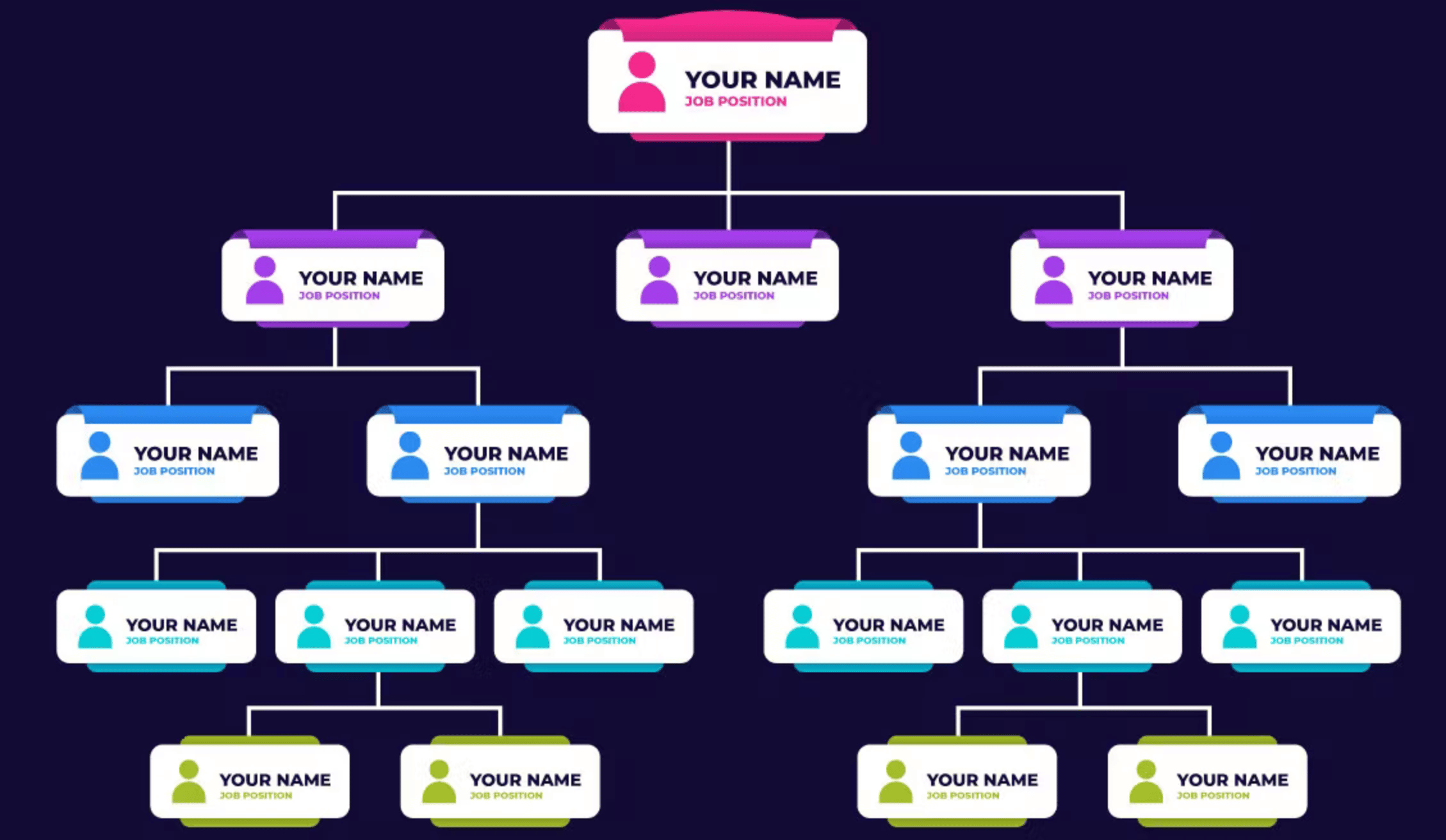
Now that you have the steps, it's time to practice until you achieve the desired result. However, you've probably seen that there are other applications and tools that create these organizational charts, such as Canva , for example. So why choose Word instead of a tool more focused on design?
One of the main advantages of using Word instead of another tool is its accessibility . Many people have access to Word and know how to use it, so learning to create an organizational chart won't be difficult for them at all.
However, it's also because you can quickly modify and edit it, as well as integrate it into other documents.
Do you dare to create organizational charts in Word?
Table of Contents